Step 5. Loading Insights Cloud Data

Loading Insights Cloud Data in Excel
If you want to create new Excel reports using Insights Cloud data, or add data to existing Excel reports, follow the steps below.
- Open Microsoft Excel and go to Data → Get Data → From Other Sources → From ODBC.
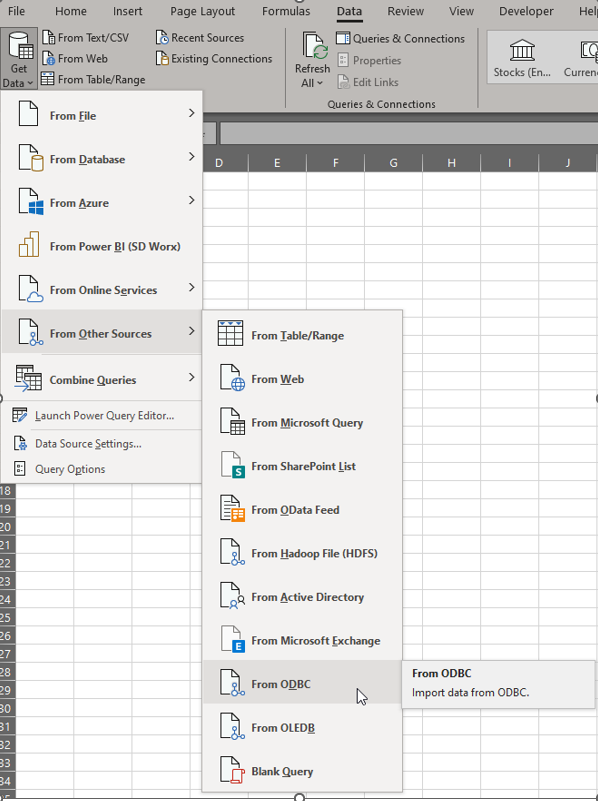
- Configure the connection:
- Data source name (DSN): Select “SDWINSCLOUD”
- Advanced options → Connection string: warehouse=CUSTOMER_WH;singleAuthenticationPrompt=true
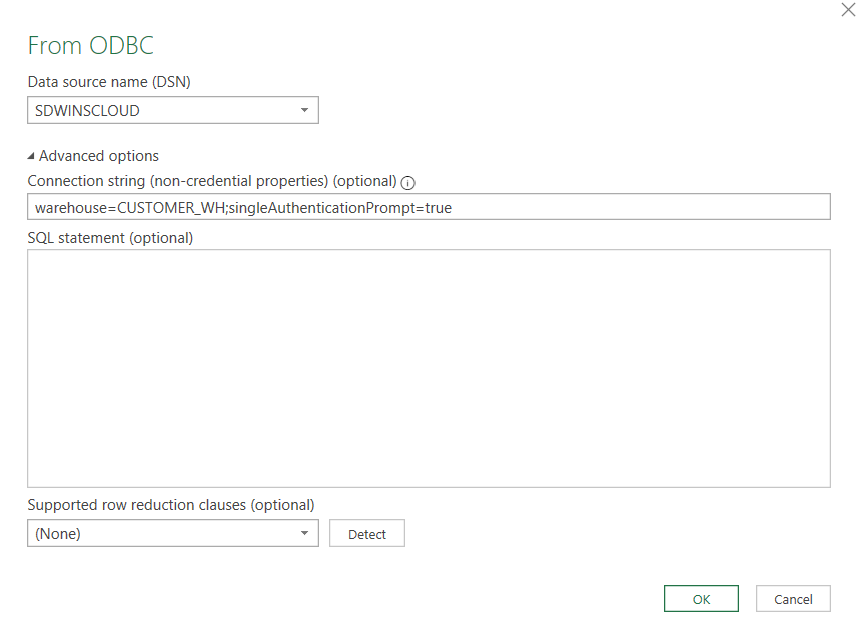
- Click OK.
- If you are not yet logged in to the mysdworx portal:
- A browser window will open on my.sdworx.com. Follow the instructions and complete the login process.
For questions about your mysdworx account or security, please refer to the FAQ for more information. - After successfully logging in, a confirmation message will appear in your browser window. You can then close the browser window and return to Excel.
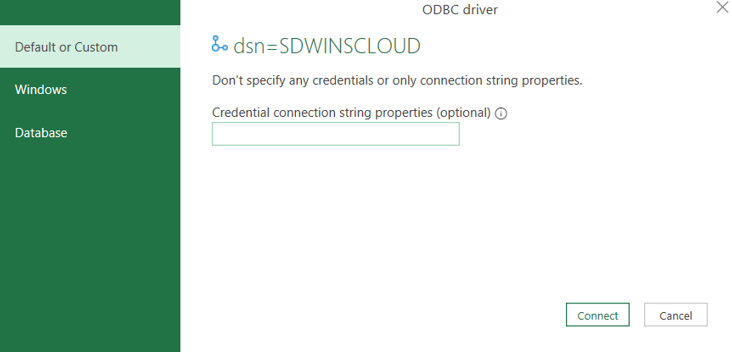
- A new window will appear in Excel. Select the “Default or Custom” tab and click “Connect”.
- The “Credential connection Spring properties” field can be left empty.
- A browser window will open on my.sdworx.com. Follow the instructions and complete the login process.
- You can now select and load the desired Insights Cloud data into Excel.
Refreshing Insights Cloud Data in Excel
To refresh your Excel report, go to Data → Refresh All in Excel.
After that, repeat all steps starting from step 4 in the section above (Loading Insights Cloud Data in Excel).
Loading Insights Cloud Data in Power BI
If you want to create new Power BI Desktop reports using Insights Cloud data, or add data to existing Power BI reports, follow the steps below.
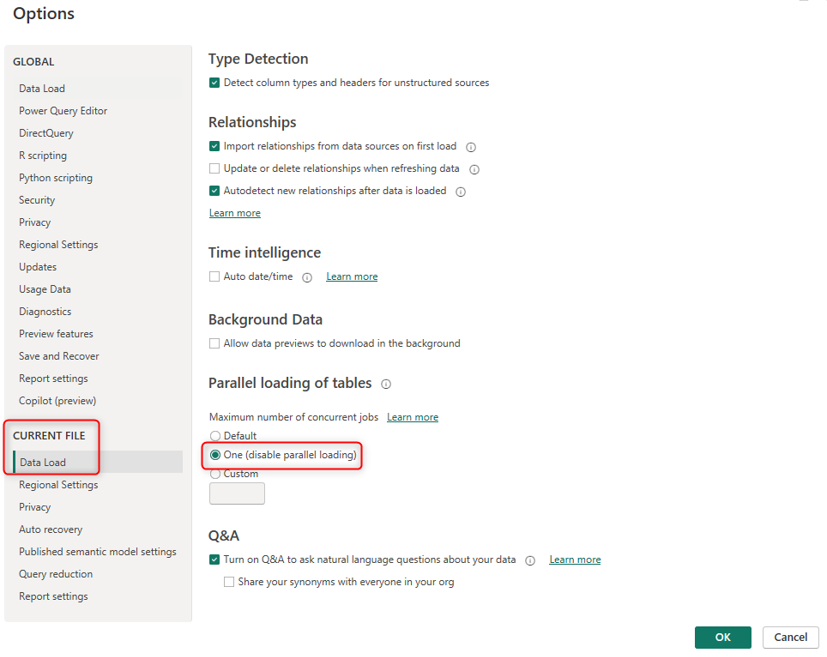
- Open the Power BI Desktop file (new file or existing report) and go to File → Options and settings → Options.
- Under Current File, select Data Load.
- Under Parallel loading of tables, select “One (disable parallel loading)”.
- Click OK.
- Go to Home → Get Data → More → From Other Sources → ODBC.
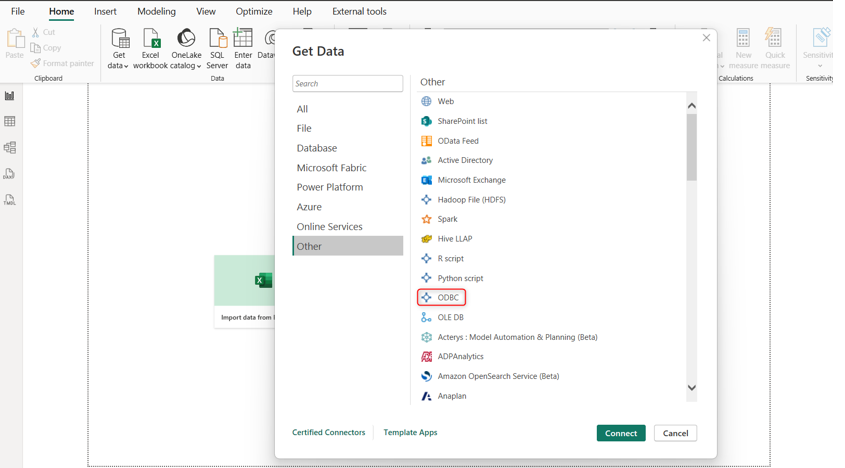
- Click Connect.
- Configure the connection:
- Data source name (DSN): Select “SDWINSCLOUD”
- Advanced options → Connection string: warehouse=CUSTOMER_WH
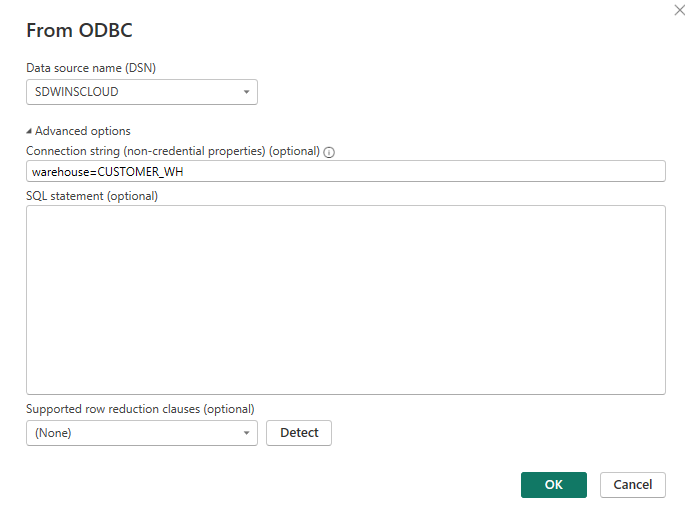
- Click OK.
- If you are not yet logged in to the mysdworx portal:
- A browser window will open on my.sdworx.com. Follow the instructions and complete the login process.
For questions about your mysdworx account or security, please refer to the FAQ for more information. - After successfully logging in, a confirmation message will appear in your browser window. You can then close the browser window and return to Power BI.
- A new window will appear in Excel. Select the “Default or Custom” tab and click “Connect”.
- The “Credential connection Spring properties” field can be left empty.
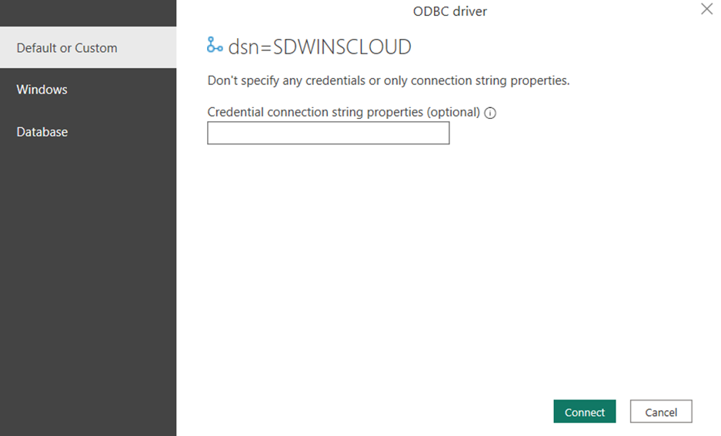
- A browser window will open on my.sdworx.com. Follow the instructions and complete the login process.
- You can now select and load the desired Insights Cloud data into Power BI.
Refreshing Insights Cloud Data in Power BI
To refresh your Power BI Desktop report, go to Home → Refresh.
After that, repeat all steps starting from step 9 in the section above (Loading Insights Cloud Data in Power BI).
